Rotating API keys - for Agent and API users
If your organization uses multiple API keys, you can do either of the following on the Media Agent dashboard:
-
Change the API key assigned to a Media Agent (see the following section).
-
Retrieve a new Media API key to authenticate your direct Media API requests (see "If you are making direct Media API requests").
If you are using Media Agent
Watch a video tutorial
|
Rotating API keys (02:04) |
Requirements
-
Your agent's version must be 11.0.4 or later. If you are running an earlier version, the steps below include upgrading the agent to the latest version.
-
The agent must be running and in either the Idle or Ingesting state.
Step 1. Access the Media Agent dashboard
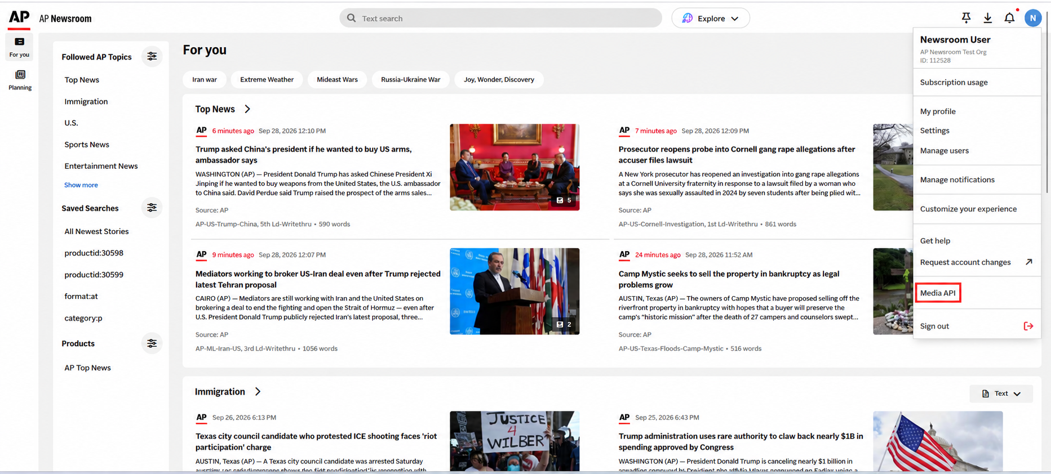
In AP Newsroom, click the Account icon in the upper-right corner to open the Account menu, then select Media API:
Step 2. Confirm that a replacement API key is available
On the agent dashboard, click See my API keys:
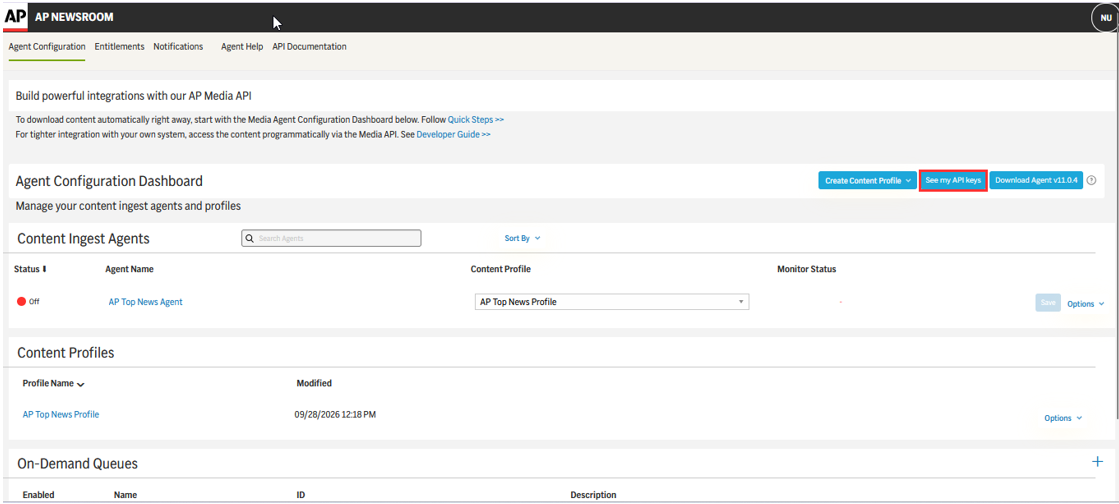
The Your API Keys dialog box identifies keys that need to be rotated, as well as new keys:

Step 3. Open the Media Agent you want to update
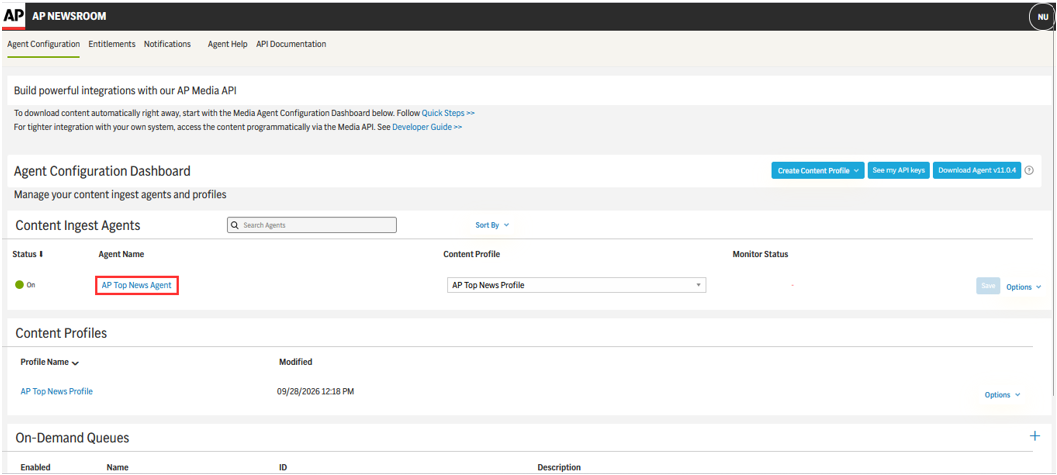
Under Content Ingest Agents, click the name of the running agent:
Step 4. Update the Media Agent
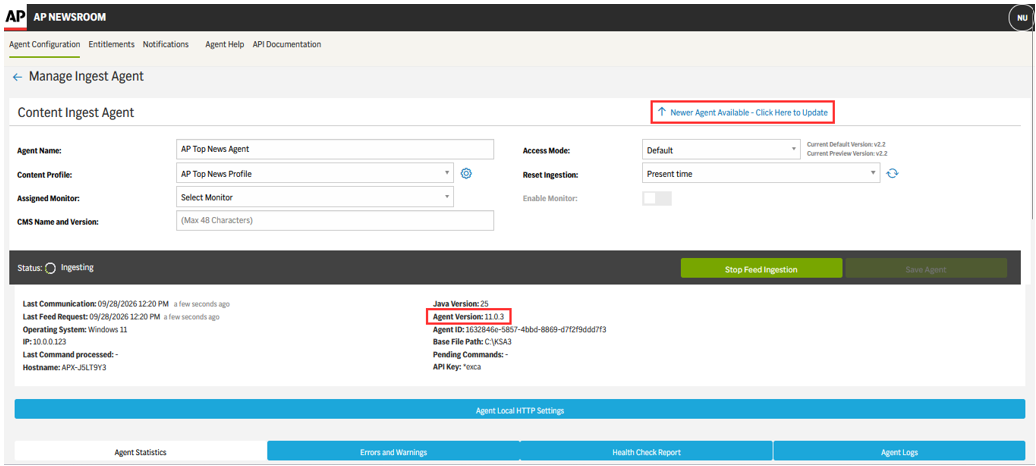
If Newer Agent Available is displayed on the Manage Ingest Agent page, click the update link. Wait until Agent Version changes and Last Command processed shows Update Success.
Step 5. Open the API key selector
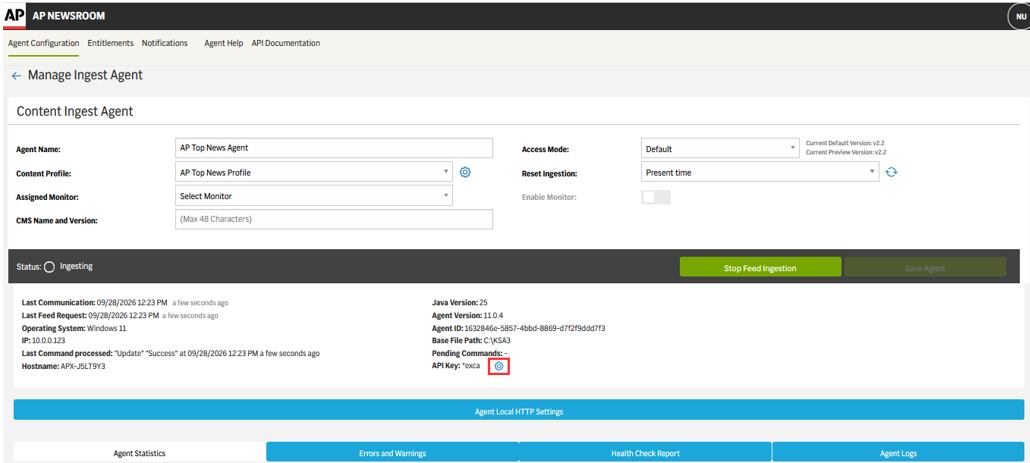
On the Manage Ingest Agent page, click the Setup icon  next to API Key:
Step 6. Choose the replacement key
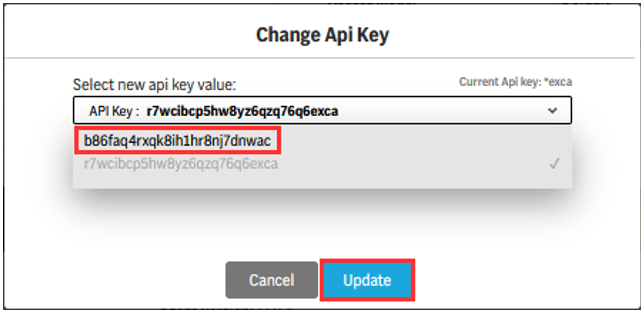
In the Change API Key dialog box, select the replacement API key from the list and click Update to save your changes. Wait for the command to finish.
Step 7. Confirm the key was updated
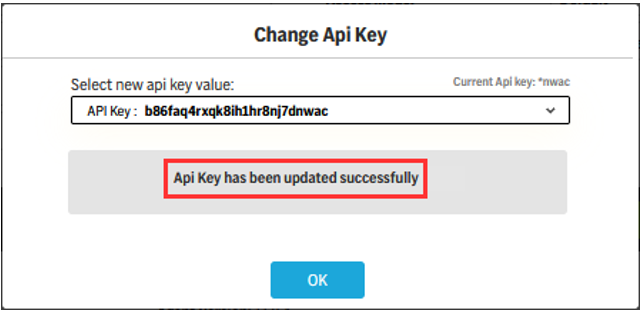
When the success message appears, click OK.
Step 8. Perform a final check
Confirm the following:
-
Agent Version field shows 11.0.4 or later.
-
API Key shows the last four characters of the replacement key.
-
Agent Status shows Ingesting.
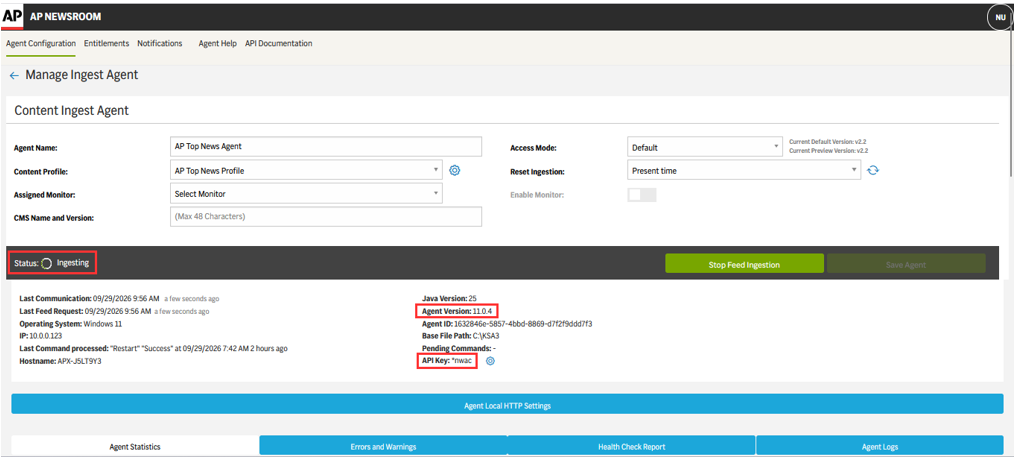
Repeat steps 3-8 for each agent you have running.
If the agent upgrade or the key rotation is unsuccessful, follow the steps to manually upgrade your agent using your new API key.
If you are making direct Media API requests
Step 1. Access the Media Agent dashboard
In AP Newsroom, click the Account icon in the upper-right corner to open the Account menu, then select Media API:
Step 2. Retrieve your API key
On the agent dashboard, click See my API keys:
The Your API Keys dialog box identifies keys that need to be rotated as well as new keys:
Step 3. Update all existing requests
Update all existing Media API requests to use the new Media API keys.